A sudden “Uuuuhhhh” interrupted me as I opened my terminal and typed dbt run.
“Are you a hacker?” my friend asked me with a wide grin.
No, I’m not… But ever since the unix terminal has made various appearances in popular movies like The Matrix, Tron and even Die Hard 4, it’s not an uncommon question.
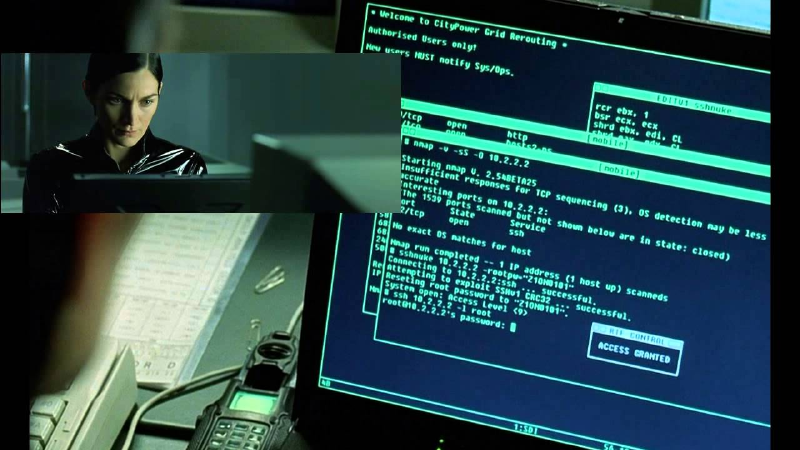
But the terminal isn’t just for hackers and geeks anymore!
Thanks to tools like dbt, the terminal has even taken over the world of data analysis.
And in this article...
I’ll show you five tips on how to make your dbt terminal experience more comfortable, fun and efficient.
1. Speed up your command entry with shell auto-completion for dbt
2. Select dbt models with an interactive search
3. Get notified when dbt finishes
4. Replace common unix tools with sexy, modern alternatives
5. Personalize your shell prompt and add valuable information to it
1. Speed up your command entry with shell auto-completion for dbt#
The very first thing you should do is teach your terminal how to auto-complete your dbt commands.
Once you do this, you’ll be able to press <TAB><TAB> to auto-complete dbt command line arguments and models.
For example you could type dbt run -m mart_crm_<TAB><TAB> and all models matching the prefix mart_crm_ would appear. You could then use your up, down, left, right arrows to select the model you want to use:
This will make model selection MUCH easier as you won’t need to remember the entire model name and only need to know the first few characters.
You can find the completion scripts on the github repo dbt-completion.bash.
To set them up, first find out which shell you are using. The shell is the software that provides the interface for entering commands within your terminal.
The most popular ones are bash and zsh.
If you are on macOS Catalina (10.15) or higher, then you are most likely using zsh.
But you can find out for sure by entering the command echo $SHELL.
This tip will work on both the bash and zsh shells, but many other tips require zsh, which is much more customizable. So you should consider switching if you are still on bash.
If you are on zsh:
The command below will download the latest version of the zsh completion script, put it in ~/.zsh/completions/ and then tell your zsh to load it whenever you start your terminal.
export ZSH_DBT_COMPLETION_PATH=~/.zsh/completions/_dbt
export ZSH_DBT_COMPLETION_DIR=$(dirname $ZSH_DBT_COMPLETION_PATH)
mkdir -p $ZSH_DBT_COMPLETION_DIR
curl https://raw.githubusercontent.com/dbt-labs/dbt-completion.bash/master/_dbt > $ZSH_DBT_COMPLETION_PATH
echo "fpath=($ZSH_DBT_COMPLETION_DIR" '$fpath)' >> ~/.zshrc
rm -f ~/.zcompdump; compinit
If you are on bash:
The process on the bash shell is quite similar…
curl https://raw.githubusercontent.com/fishtown-analytics/dbt-completion.bash/master/dbt-completion.bash > ~/.dbt-completion.bash
echo 'autoload -U +X compinit && compinit' >> ~/.zshrc
echo 'autoload -U +X bashcompinit && bashcompinit' >> ~/.zshrc
echo 'source ~/.dbt-completion.bash' >> ~/.zshrc
After that simply restart your terminal or open a new tab and the tab completions should start working.
2. Select dbt models with an interactive search#
Model auto-completion is a HUGE improvement.
It works very well when your models have consistent prefixes. And that’s one of the reasons why a consistent naming convention is so important.
But sooner or later your dbt project will grow to a level where you simply have too many models.
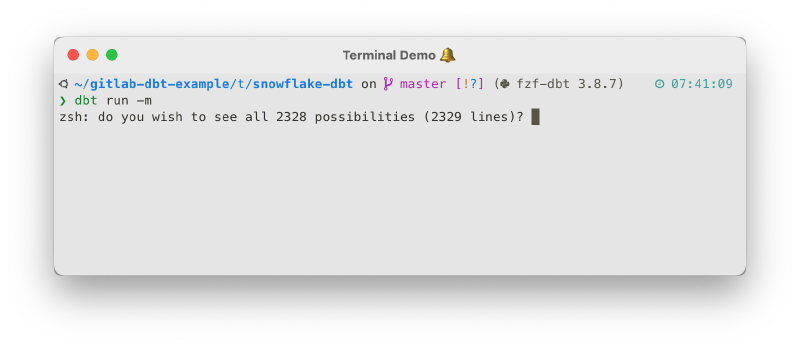
Eh… no thank you, Terminal. I don’t want to see 2,329 models after pressing <TAB>.
(Yes, gitlab’s dbt project has over 2,000 models. And they made it publicly available as an example. So you can download it and check it out here.)
Fortunately, there’s a solution for this problem too.
It’s called fzf-dbt and it’s a little utility I developed at Infused Insight. It adds an interactive search and selection for dbt models to your terminal.
Here’s what it looks like:
To activate it, simply type dbt run -m **<TAB>. It also works with --exclude or any other parameter.
You will be greeted with a list of all your dbt models on the left side. And on the right you’ll see a preview of the model code, which you can scroll with your trackpad or shift-up / shift-down.
You can narrow down the available models by typing. The search is “fuzzy”. So if you want to select the model netsuite_customers_source, you can simply type cust so and it will appear as the top match.
To select a model simply navigate to it with the up and down keys and press enter. You can also select multiple models at once with tab or shift-tab.
In addition to that you can also switch between multiple views:
- Press
,to switch to the default view that shows all your dbt models - Press
.to switch to the selectors view that shows you all your tags and packages - Press
<to switch to the plus view that shows you all your models with the + and @ modifiers
Currently fzf-dbt is only compatible with zsh. So if you are still using bash, you should first switch to zsh.
Then head over to the fzf-dbt github repository for the installation instructions. It should take less than 10 minutes to install.
3. Get notified when dbt finishes#
Sometimes your dbt run can take a while.
And you probably aren’t just twiddling your thumbs while staring at the terminal the whole time.
Perhaps you do something productive while you wait… Or… maybe you look at cat videos… And periodically check the terminal to see whether dbt has finished its run.
But wouldn’t it be amazing if you didn’t have to interrupt your cat videos to check on dbt and instead got notified instantly when the run finished?
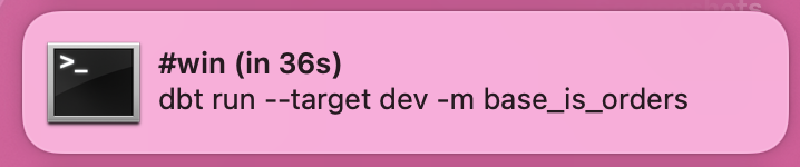
Well, you are in luck. This can be accomplished with zsh and marzocchi/zsh-notify.
Head over to their github for detailed installation instructions.
4. Replace common unix tools with sexy, modern alternatives#
Many of today’s most used terminal commands like ls, cat and less were first released DECADES ago.
For example, the ls command, which allows you to list the content of a directory, first appeared over 50 years ago in 1971.
And despite all the progress computers have made, the ls command has remained largely unchanged.
But it doesn’t mean that there’s no more room for improvement.
Recently, a lot of modern re-interpretations of these classical commands have appeared and they can make your terminal experience a lot more pleasant.
First up…
Exa - The ls replacement#
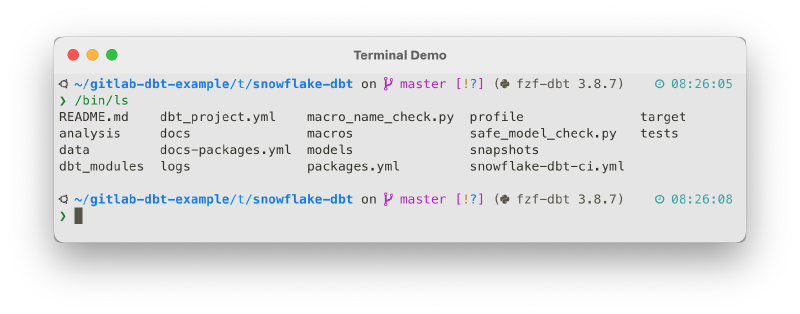
Take your terminal from the boring old ls…
To the sexy, modern exa…
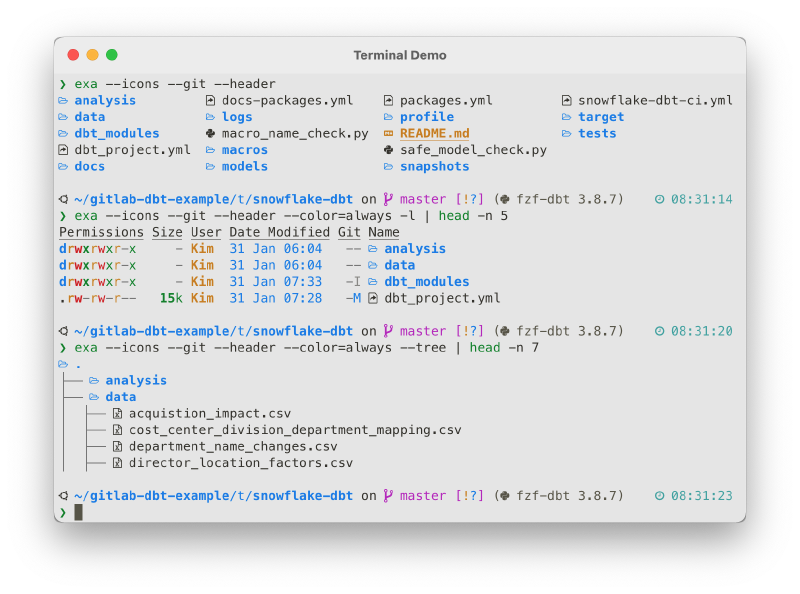
Exa doesn’t just make your ls output more beautiful with colors and icons, but it also adds many practical features like git status and a tree view.
It’s definitely worth checking out on https://the.exa.website/. There you can also find install instructions for various systems.
Once installed, you can add the following aliases to your .zshrc or .bashrc file to replace the classical ls command with exa.
if command -v exa 2>&1 >/dev/null; then
	alias ls='exa --icons --git --header'
	alias tree='ls --tree'
fi
Bat - The cat and less replacement with code syntax highlighting#
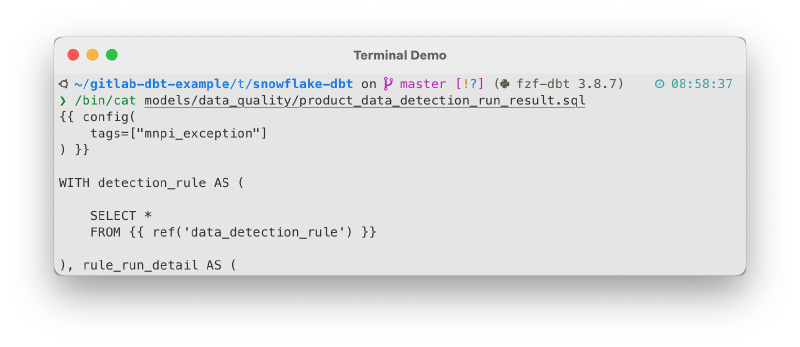
Two other frequently used commands are cat and less which show the content of files in the terminal.
Traditionally, it looks like this…
But using bat you can turn it into this…
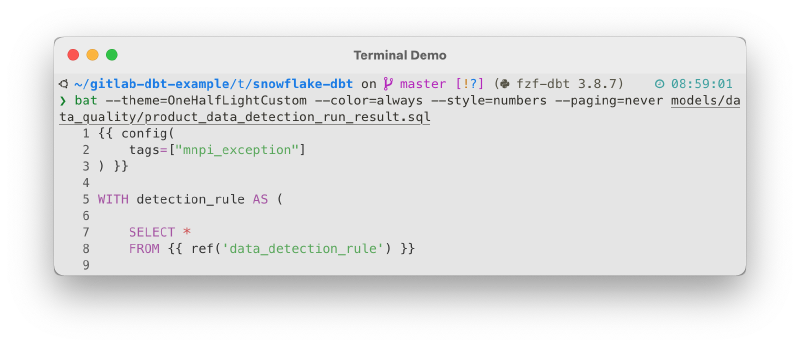
You can learn how to install it on their github page.
Once installed, you can add aliases to replace cat and less to your .zshrc or .bashrc:
# Replace cat and less with bat
if command -v bat 2>&1 >/dev/null; then
	alias bat='bat --theme=OneHalfLightCustom --color=always --style=numbers'
	alias cat='bat --paging=never'
	alias less='bat --paging=always'
fi

# Allow using traditional cat and less with `ccat` and `cless`
alias ccat="/bin/cat"
alias cless="/usr/bin/less"
Delta - The git diff replacement#
Another useful tool for dbt developers is git-delta.
It turns git diff from this…
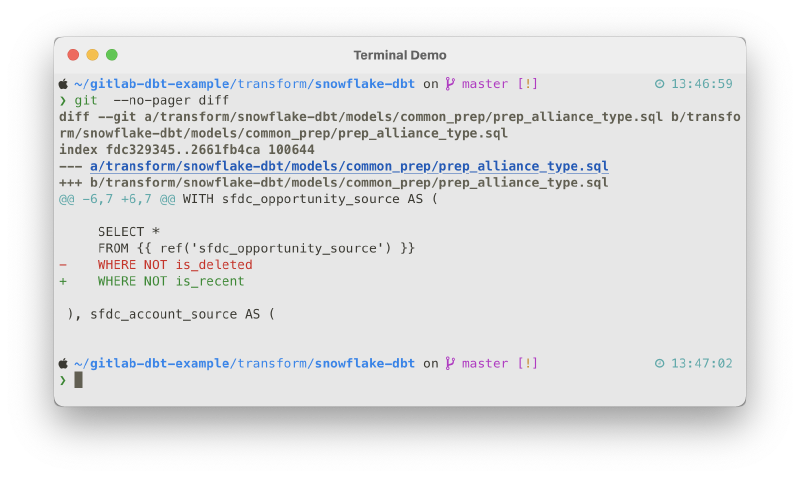
Into this…
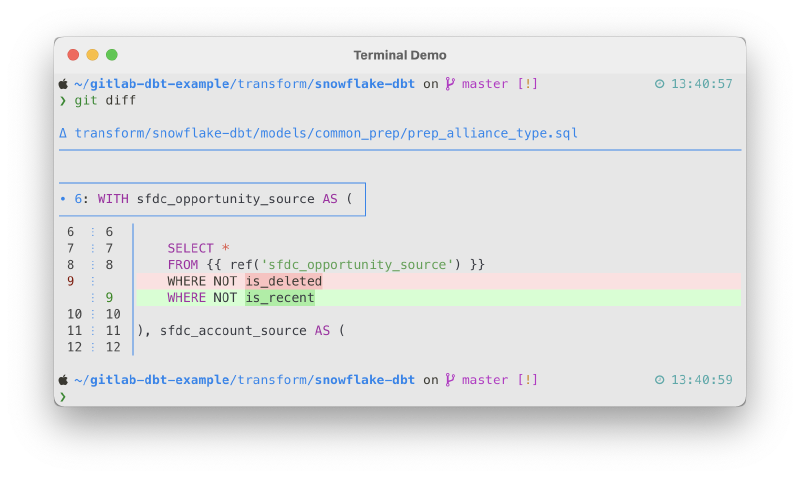
You can find installation instructions on delta’s github repo.
Other useful tools#
If you want to explore more modern linux tools, I encourage you to also check out lazygit, ripgrep and fd.
5. Personalize your shell prompt and add valuable information to it#
My final tip is on how to customize your terminal prompt.
The default macOS terminal looks like this…
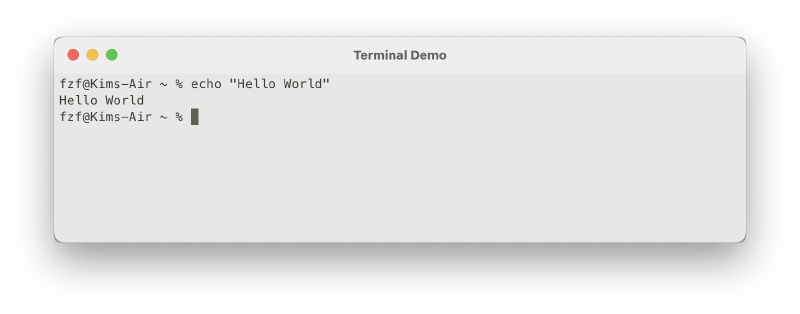
It certainly gets the job done.
But… let’s be real for a moment… Nobody is going to ask you if you are a hacker with a lame terminal like this… ;)
Fortunately, the unix community is extremely passionate about their terminals and there’s a whole culture of terminal customization and configuration.
Us nerds spend years honing and improving our setups and many even publish their configurations as .dotfiles on github so that other people can replicate their settings.
And it’s not just about looks…#
You have seen many screenshots of my terminal throughout this article, but you may not have noticed all the information my prompt conveys at a glance…
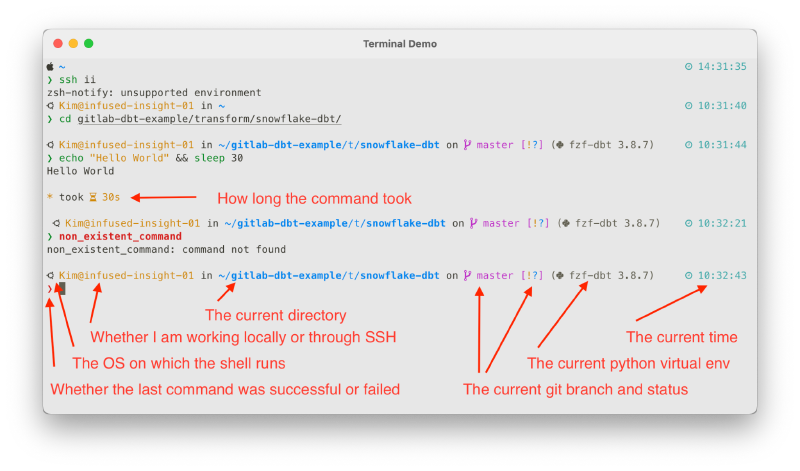
As you can see, my prompt tells me a lot of important information and adapts itself to the environment.
When I am working on my local Macbook, it only shows an Apple icon and the current path in blue to conserve space. But when I ssh into a remote server, it shows me my user name and the host in orange.
This way I always know where my commands will be executed.
If I am in a directory with a git repository, it shows me the current branch and whether there are any modified files.
How to customize your own shell prompt#
The reason I left this tip for the end is, because there are hundreds, if not thousands of options to customize your terminal.
There is no way I could cover all of them in one article, but I want to at least give you a starting point for your own journey.
First of all, one of the things you have to watch out for is that many customizations and themes for zsh can make your shell very slow.
This means every time you open a new tab, it can take several seconds until you can actually type your command… That’s neither fun nor efficient.
Fortunately, there is one prompt theme that has made it their mission to be both extremely fast as well as highly customizable.
It’s called powerlevel10k.
You can find setup instructions on their github and that’s the place I recommend you start with to customize your terminal.
Once you have dialed your prompt in, you can also consider trying out other zsh plugins.
For that you can use the zsh plugin manager antigen.
And here are the plugins I am using in my setup if you want a starting point…
#====================================
# Load oh-my-zsh library
#====================================
antigen use oh-my-zsh

#====================================
# Load bundles from the default repo (oh-my-zsh)
#====================================
antigen bundle macos
antigen bundle git
antigen bundle command-not-found
antigen bundle docker
antigen bundle pip
antigen bundle fzf

#====================================
# Load bundles from external repos
#====================================
# Replace zsh default tab completion with fzf fuzzy search
antigen bundle Aloxaf/fzf-tab

# Sends a macOS notification when a long-running command completes
antigen bundle marzocchi/zsh-notify

# Adds tab completions for command options.
# For example, shows target when you type `make <tab><tab>`
antigen bundle zsh-users/zsh-completions

# Adds color syntax highlighting for typed commands.
# For example, the command will be green if it exists and red if it doesn't.
antigen bundle zsh-users/zsh-syntax-highlighting

# Adds support for aliases that are expanded after typing a space
# after the alias. For example, typing `gst ` will expand to `git status`.
# Check aliases.zsh for all expansions.
antigen bundle momo-lab/zsh-abbrev-alias

# Plugin that connects git to fzf
antigen bundle bigH/git-fuzzy
export PATH=~/.antigen/bundles/bigH/git-fuzzy/bin:$PATH

#====================================
# Finish antigen config
#====================================
antigen applyConclusion#
Thank you for making it to the end of this very long article. You rock!
If you have any questions or comments, feel free to reach out to me on twitter or the dbt slack. And if you’d like to learn more about what I do please visit Infused Insight or my github.